In PrestoCRM, quotes are created from a deal. That way the deal’s customer, contact person and items end up in the quote automatically, and the deal later knows its quote value.
Create a quote
- Open the deal and click Create quote, or use + New → New quote.
- Choose a Template (such as “Website project” for agencies) or No template.
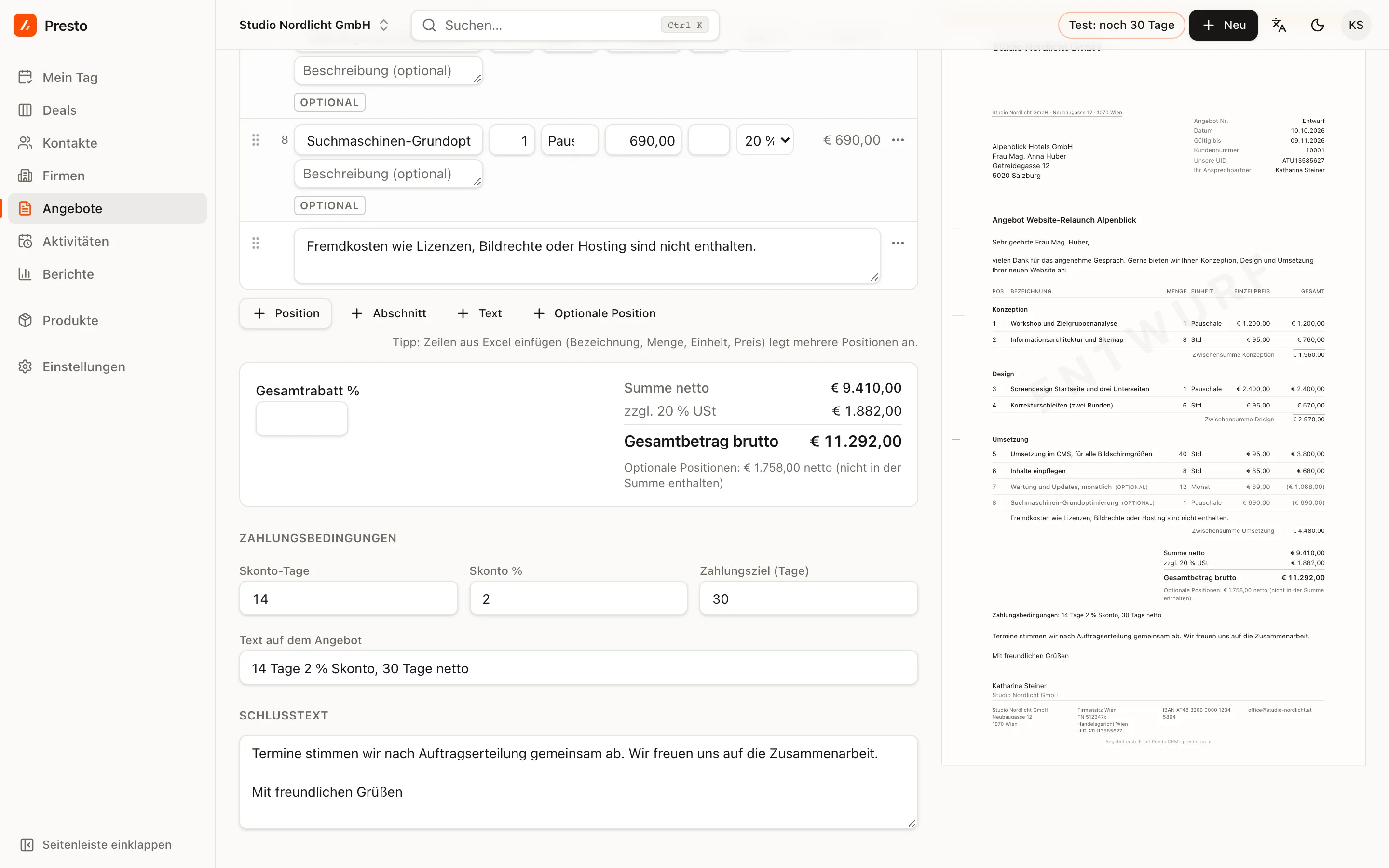
- Create draft opens the editor. You edit on the left and see the quote on the right exactly as it will look as a PDF.
The draft saves itself. “Saved” appears at the top as soon as everything is stored.
Items, sections and text
Below the list you can add:
- Item: description, quantity, unit, unit price, discount and tax rate. Start typing a product name and PrestoCRM suggests products from your catalogue.
- Section: a heading such as “Concept” or “Implementation”, with a subtotal.
- Text: a paragraph between the items, for example “Third-party costs are not included”.
- Optional item: offered but not included in the total. The quote marks it “optional” and shows the total of all options separately.
Several items at once: copy rows from Excel (description, quantity, unit, price) and paste them into the list.
Discount, Skonto and payment terms
Below the items you find Total discount % and the totals. Underneath are the Payment terms: Skonto days, Skonto % and payment due date. Skonto is a discount for paying early. PrestoCRM turns these into the text on the quote, for example “14 days 2% Skonto, 30 days net”. Set your defaults under Settings → Documents.
Briefanrede and tax case
The Briefanrede (the formal letter salutation) comes from the contact person: “Sehr geehrte Frau Mag. Huber”, with academic titles used the Austrian way. Choose the Tax case in the editor’s Tax case field; it decides on VAT and the required legal note, see Tax cases.
Finalise and send
As long as the quote is a draft, you can change anything or delete it. Finalise assigns the quote number and locks the quote, see Finalising and number range.